Tune Game Feel Without Burning Credits
Every “make it faster” message costs a credit. Here's the workflow that uses chat for structure and a values panel for feel — with a mobile game-feel checklist.
Here's a habit that quietly drains an AI game-building budget: typing "make the player a bit faster", waiting for a regeneration, playing it, then typing "actually a little slower". Each message is a credit, and tuning game feel takes dozens of those adjustments — that's the nature of feel.
The fix is simple: use chat for structure, and a values panel for numbers.
Why small chat tweaks are an expensive habit
In Pixelfork, the first generation of a project costs 2 credits and every chat change costs 1. Numeric polish is where the count runs away from you: jump height, gravity, run speed, spawn rate and score pacing usually need ten to thirty passes before a game feels good.
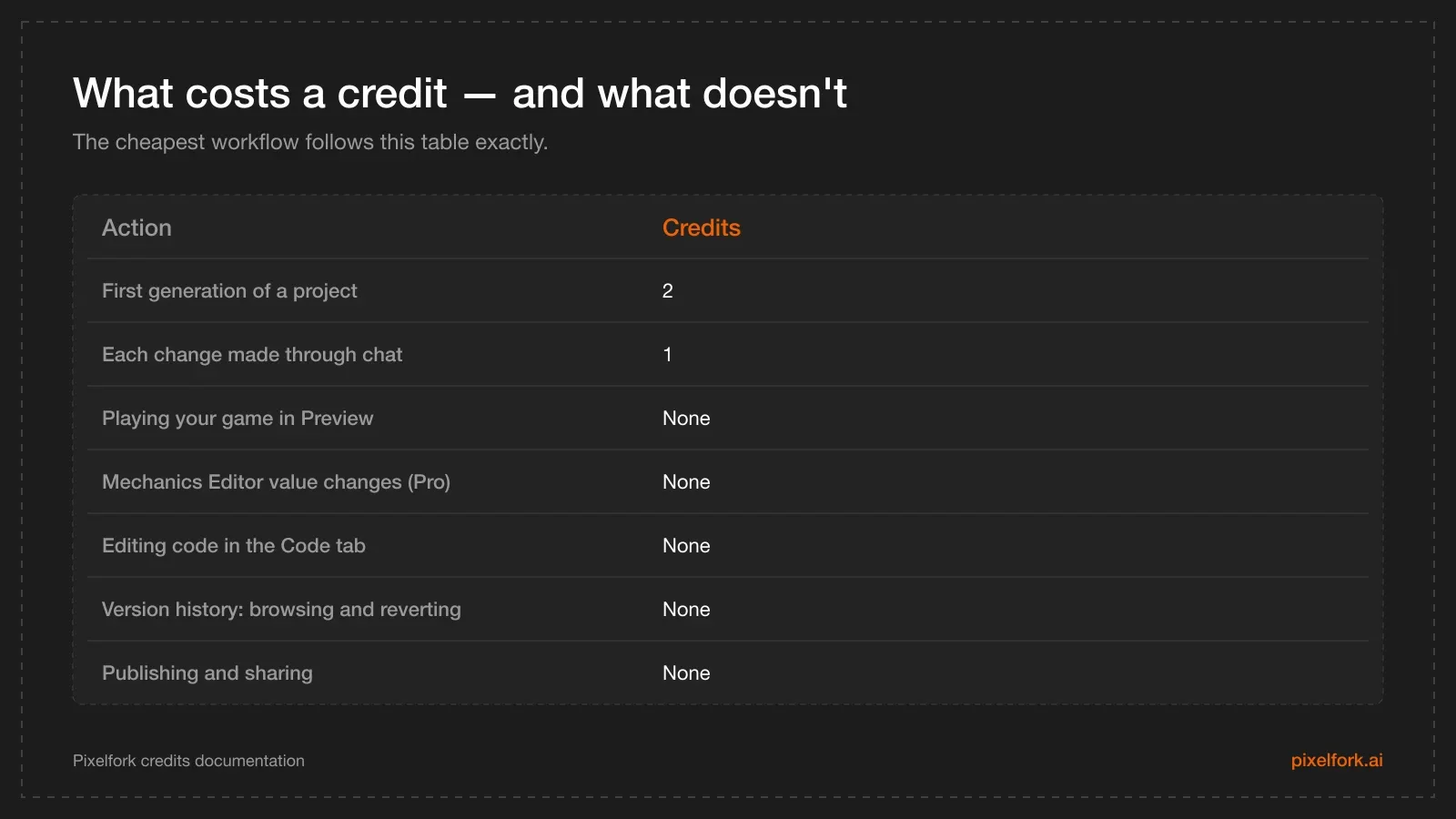
Most of the work you do after generation is free — if you do it in the right place.
What the Mechanics Editor is
It's a panel in the editor — the gear icon — that exposes the tunable values of your current game as plain editable fields. Change a value, click Apply to Code, and the preview updates immediately. It bypasses the AI entirely, so there's no generation wait and no credit spend. Per the credits documentation it's a Pro plan feature.
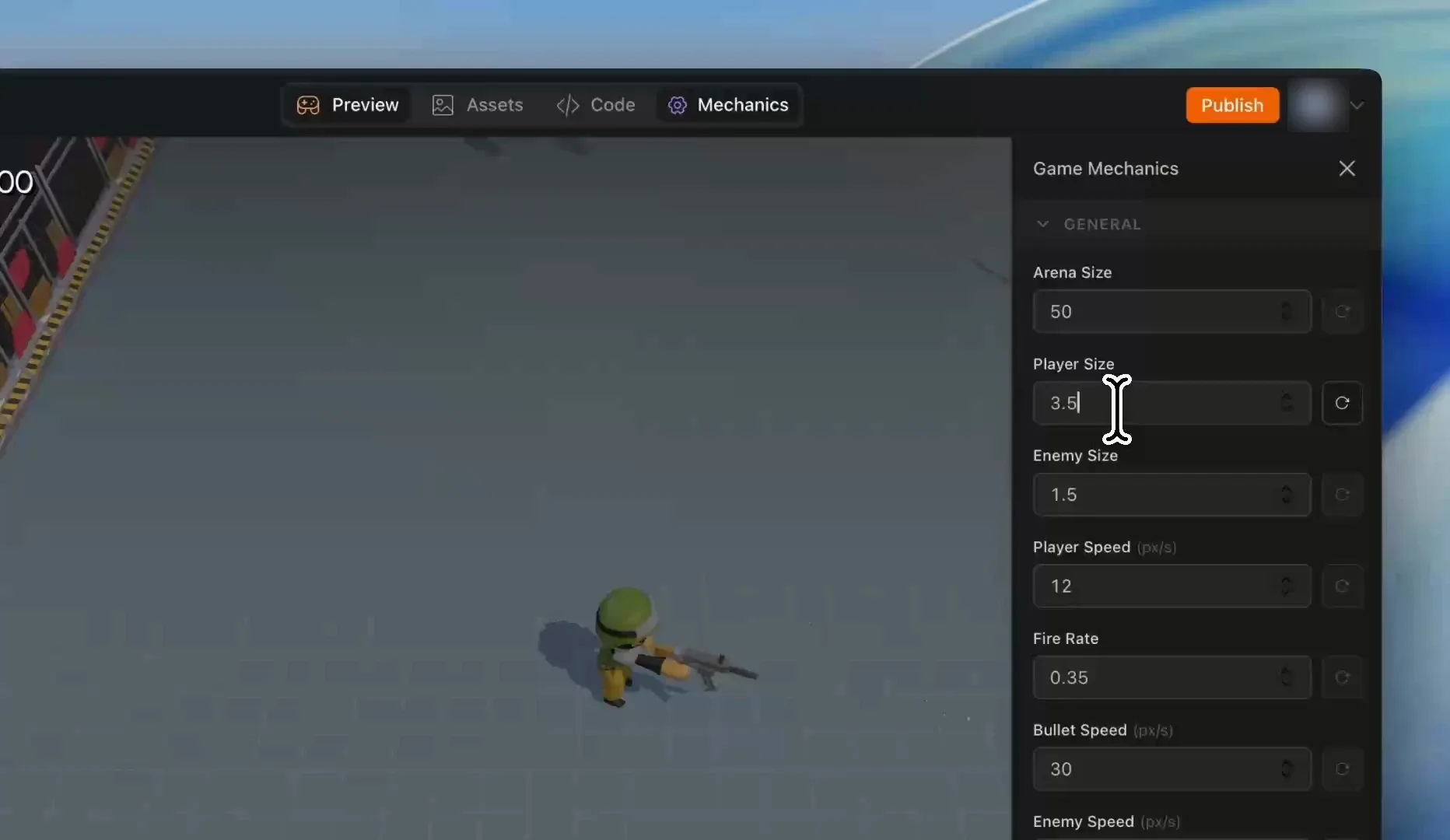
Values on the right, game on the left: change a number and play it immediately. Screenshot: Pixelfork Mechanics panel.
What you can usually tune
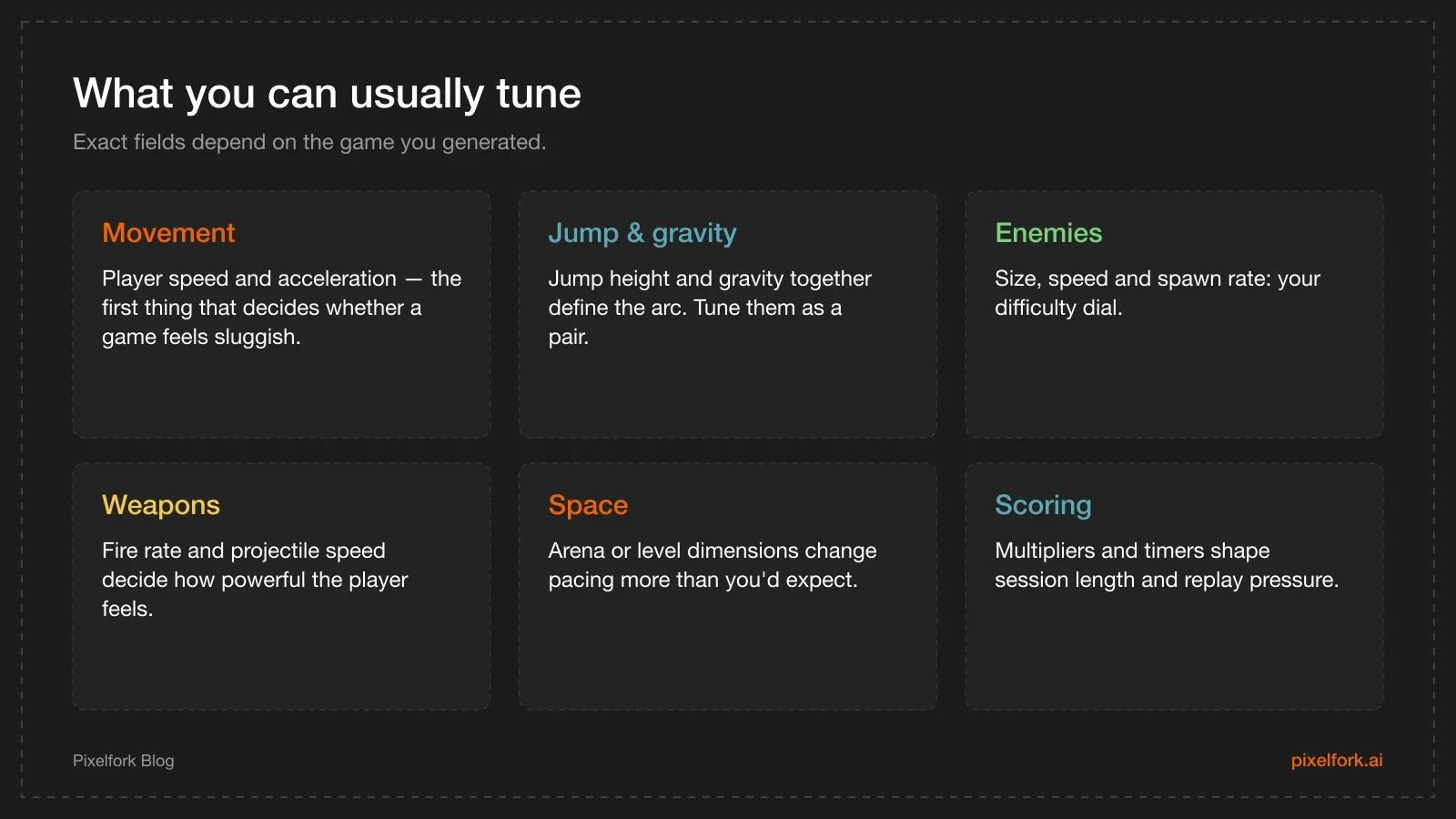
The fields depend on your game type, but these show up constantly.
If a value you want isn't in the panel, ask the chat to add it — for example: "add camera angle and zoom to game mechanics". That's one credit spent once, and every adjustment after it is free.
The workflow
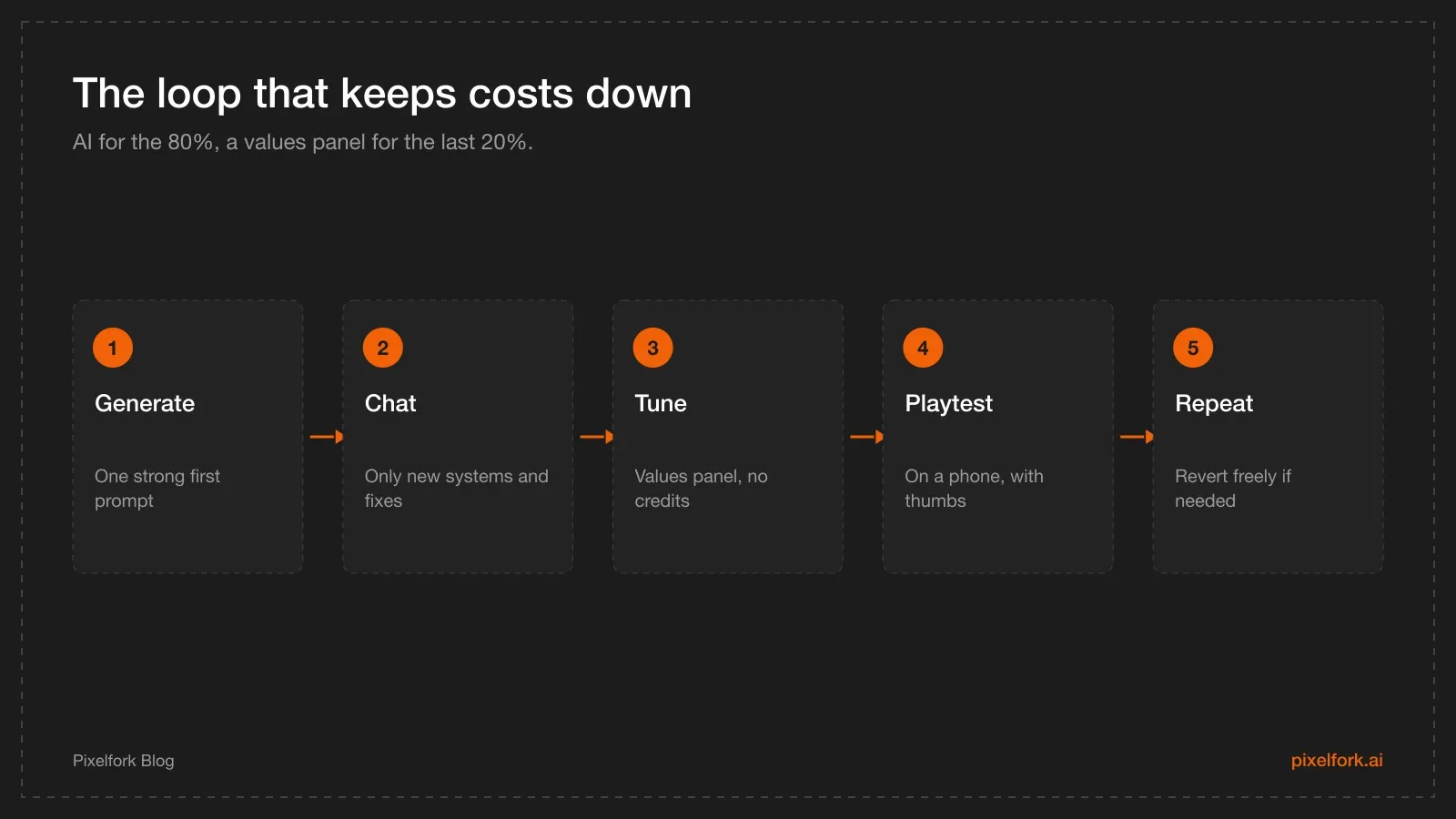
Five steps, and only two of them cost anything.
- Generate with a strong first prompt. Copy one from the prompt library and adapt it.
- Use chat only for structure: a new enemy type, a power-up, a menu, a bug fix, a scoring system.
- Switch to the panel for feel. Speed, gravity, spawn rate, timers, multipliers.
- Playtest on a phone, not just in the desktop preview. Export an APK when the loop settles — it's the only way to judge touch.
- Revert fearlessly. Browsing version history and reverting don't cost credits, so experiment with confidence.
A game-feel checklist for mobile
Tuning without a checklist turns into fiddling. Work through these in order:
- Response. Does the character react on the same frame as the touch? Anything that feels delayed reads as "broken" to players, not "heavy".
- Readability at arm's length. Play at a normal phone distance. Can you tell obstacles from background at a glance?
- Jump arc. Tune jump height and gravity together. A floaty jump is usually too little gravity, not too little height.
- Forgiveness. A few frames of coyote time and a small input buffer make a platformer feel fair without making it easier.
- Difficulty ramp. Increase one variable at a time — speed or spawn rate, not both.
- Session length. Decide the target (30 seconds, 3 minutes) and tune timers and score pacing to hit it.
- Failure clarity. The player should always know why they died. If they don't, it's a readability problem, not a balance problem.
What still needs chat (or the code tab)
The panel changes values, not behaviour. These still belong in chat:
- New mechanics and systems ("add a dash with a cooldown").
- UI and flow ("add a pause menu", "show best score on the game-over screen").
- Art and style changes, or swapping in your own assets.
- Bug fixes and refactors.
Advanced users can also edit the generated JavaScript in the Code tab directly — also free of credits — which is often the fastest way to make a precise change you'd otherwise describe three times.
A note on plans
The Mechanics Editor is documented as a Pro feature. Free (5 credits a month) and Lite (50 credits, $15) can still generate and iterate through chat, but the no-credit tuning loop described here is part of Pro (100 + 20 credits, $25). Check the credits documentation for the current plan details before you decide.
A worked tuning session
Numbers in isolation mean nothing, so here's the shape of a real session on a 2D platformer. Change one value, play for thirty seconds, then decide.
- Movement first. Raise run speed until the character feels responsive but controllable. Too slow reads as "clunky"; too fast reads as "slippery".
- Then gravity. Raise it until falls feel weighty. Most generated platformers start too floaty.
- Then jump height, to compensate for the heavier gravity, until a standard gap clears with a small margin.
- Then level dimensions. If jumps now feel cramped, widen platforms slightly rather than re-tuning the jump.
- Then enemies. Speed and spawn rate last, because they're balanced against the movement you just fixed.
The order matters: every value downstream depends on movement. Tuning enemies before movement means doing it twice.
Recipes by genre
Endless runner. Run speed, speed ramp, jump height, gravity, obstacle spawn interval. Ramp gently — most runners fail because speed rises faster than the player learns.
Hypercasual one-tap. Input responsiveness, object speed, spawn interval, combo window. Sessions should end in 15–45 seconds at the start and stretch as skill grows.
Arcade shooter. Player speed, fire rate, projectile speed, enemy size, spawn rate, arena size. Fire rate and projectile speed together control how powerful the player feels; arena size controls how much room to breathe.
Puzzle. Move limits, target scores, board size, cascade and animation speed. Animation speed is underrated: 150–250 ms keeps a fast player from waiting.
When two values fight
Some pairs can't be tuned separately:
- Jump height and gravity define the arc. Change one, always re-check the other.
- Speed and spawn rate define density. Raising both at once always overshoots.
- Fire rate and enemy health define time-to-kill. Fix one, tune the other.
- Score multiplier and session length define pacing. A generous multiplier makes short runs feel rewarding — and long runs feel meaningless.
When a game feels wrong and single changes don't help, you're probably tuning one half of a pair.
Working with someone else
If a second person is playtesting for you, give them a script rather than asking "is it fun?":
- Play three runs without commentary.
- After each, answer: too slow, about right, or too fast?
- Tell me the moment you felt unfairly killed.
- Tell me the moment you felt clever.
Then make one change at a time between rounds. A tuning session where you change four values at once teaches you nothing, no matter how much better the result feels.
Keeping a tuning log
Feel work is easy to lose track of, and version history only tells you what changed, not why. Keep a three-column note while you tune:
| Value | Before → after | Why |
|---|---|---|
| Gravity | 9 → 12 | Jump felt floaty |
| Jump height | 4 → 4.6 | Compensate for heavier gravity |
| Spawn interval | 1.2 → 1.5 | Two testers died before reacting |
Five minutes of notes saves you from the classic loop of re-tuning the same value in circles — and it's the fastest way to hand the game to someone else for a second opinion.
FAQ
Does the Mechanics Editor use credits?
No. Pixelfork's credits documentation lists Mechanics Editor value changes among the actions that don't consume credits, along with playing the preview, editing code, browsing version history and publishing.
Is it available on Free or Lite plans?
The credits documentation lists the Mechanics Editor as Pro only. On Free or Lite you can still iterate through chat, where each change costs a credit.
What if the value I need isn't in the panel?
Ask the AI to expose it. A message such as "add camera angle and zoom to game mechanics" adds the fields to the panel; after that, adjusting them is free.
Can I break my game with bad values?
You can make it unplayable — gravity at zero, spawn rate at a hundred — but nothing is destroyed. Set the value back, or use version history to revert; both are free.
Should I tune before or after testing the APK?
Both. Do a first pass in the browser preview to get in the right range, then export an APK and re-tune on a real phone. Touch input and screen size change what "fast" feels like.
How is this different from editing the code directly?
The panel exposes a curated set of values with instant apply, which is ideal for quick iteration. The Code tab gives you everything, which is better for precise or structural changes. Neither costs credits.
Generate once, then stop paying for micro-tweaks: open your game in Pixelfork, hit the gear icon, and tune the feel until it plays well in your hand.